Sometimes, you are out of office and can’t deal with the emails in time. In this case, you might want to let people know why you're not responding to their emails even though you have received the emails. You can set out of office (auto reply) in Outlook as follows
Set out of office with Out of Office Assistant with Exchange Account
If you are using an Exchange account, you can auto reply a specified message for the received emails with setting the Out of Office Assistant while you are away. Please do as follows:
1. Click File button in the upper-left corner in outlook 2010, and click Info > Automatic Replies, see screenshot:

Note: If you do not see this Automatic Replies option, your outlook have not connected to an Exchange Server.
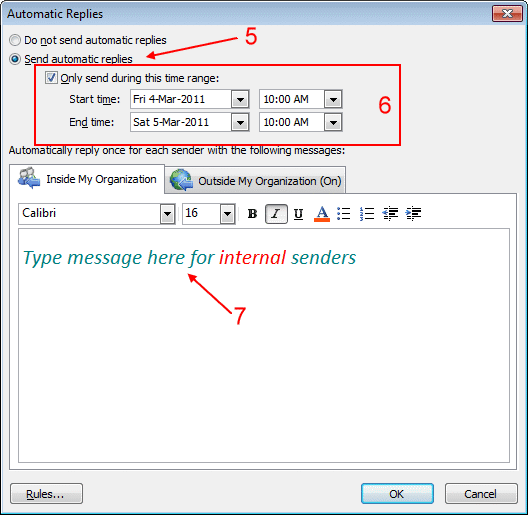
2. In the Automatic Replies dialog box, select the Send automatic replies:
- (1.) Check the Only send during this time range, and then specify the Start time and End time you need to auto reply the message.
- (2.) Then type your message at the space box.
3. If you want to send auto-reply message to external senders, click on the Outside My Organization tab and check the Auto-reply to people outside my organization option. See screenshot:
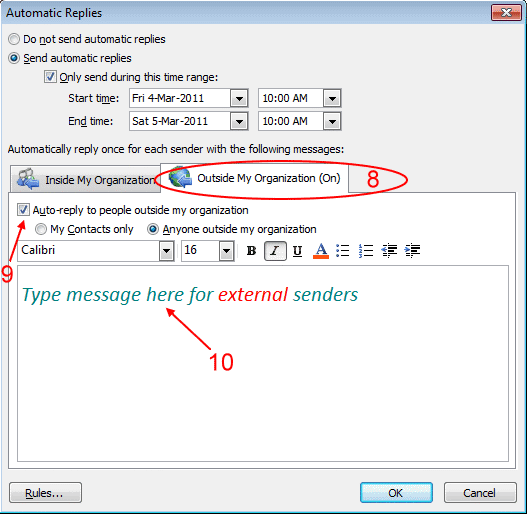
4. Click OK to activate the out of office message.
|
Rate this FAQ:
|
|||
|
